Streamlined and easy to use, your Whitby Library catalogue has a new look. The Library has now switched to a new catalogue provider. We’ve put together an FAQ to help you navigate the change. Don’t hesitate to reach out if you have any additional questions by using our online feedback form or emailing askborrowerservices@whitbylibrary.ca.
Why is the Library making this change?
All Town departments were asked to find cost savings as part of the 2026 budget process. Moving to a new catalogue and app results in savings for the Library.
Is there an app for the new catalogue?
Yes, visit the Google Play Store or Apple App Store to download the new app. The previous catalogue's app is no longer supported and can be removed from your devices.
How do I log in?
Visit the new catalogue, or app, and use your library card barcode and PIN to sign in. Usernames from the old catalogue will not work in the new catalogue.
Is information available on how to use the new site?
Yes, there is a help page available that provides general information on how to use the site, searching, managing your account, and creating lists.
Will I be able to see my borrowing history?
The tracking of your borrowing history will start fresh in the new catalogue.
Will my "For Later" list still be available?
Your "For Later" list from the old catalogue will not transfer to the new catalogue. You can create a new For Later list by following the instructions to create your own lists below.
Can I still write and read customer reviews?
This feature is not available in the new catalogue.
Can I still make my own lists?
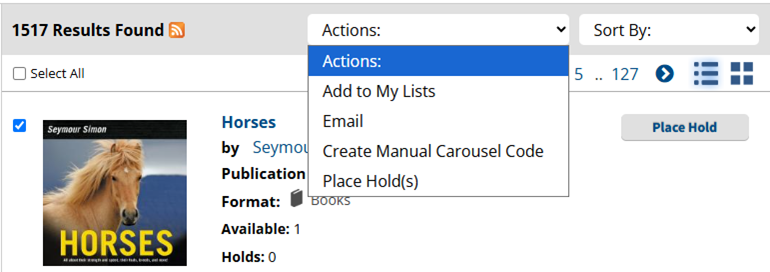
Yes! There is a lists feature available. You can select items from the search display and choose “Add to my lists” from the Actions drop down menu. You can create multiple lists or just have a generic list to track everything.
What features are available through “My Account”?
Once you log in to your account you will see:
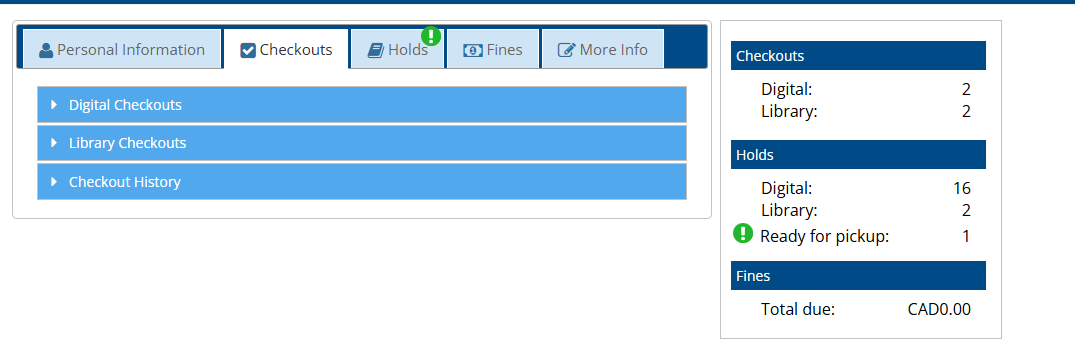
You will go to your account to view the due dates of items you have checked out, to renew items you have checked out, to see your place in the queue for any holds you have placed, and to view any outstanding fees on your account.
You can also access your lists through the top menu bar once you are logged in:

How do I pay fees on the new site?
Log in to your account and select the “Fees” tab.
How do I place a hold on a book?
You will need to be logged in to place a hold. Once you are logged in and have found the item you are interested in you will click on the “Place hold” button. If you are looking at a list of items and would like to place holds on more than one item in the list, use the check boxes on the left side of the list to select the items you would like to place a hold on, and then select “Place hold(s)” from the Actions drop down menu.

For more information on managing your holds visit the My Account FAQ page.
How do you place holds on magazines or specific editions?
Item level holds are not available on the new catalogue website, but are available through the app.
Using the app, search for the magazine or book. Within the title record, click on “View availability”.
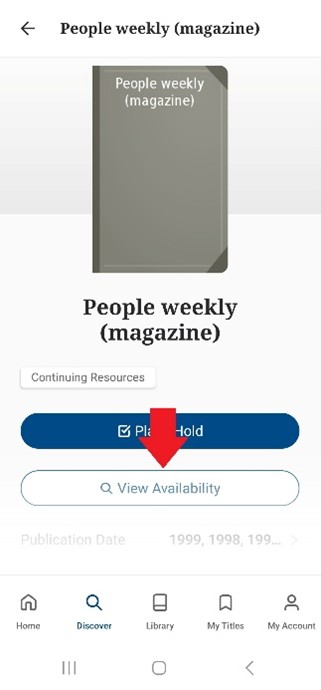
Select the desired issue or edition from the list.
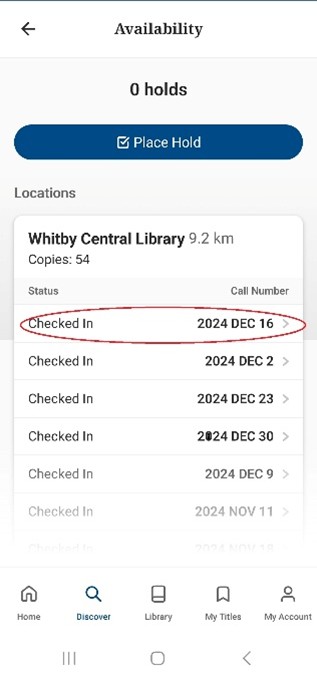
Click on submit. This will place a copy specific hold
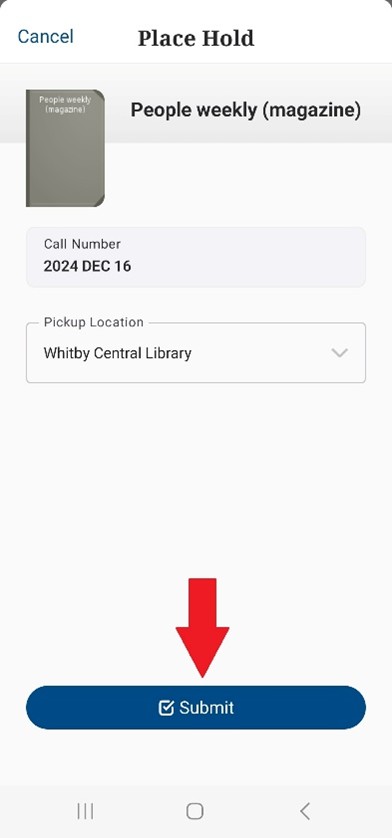
For patrons who do not have the mobile app they will have to speak to staff, who can place the hold in Horizon.
For books that have multiple editions, moving forward we will be creating a separate record for each edition. For items that are already in the catalogue staff will need to assist patrons with placing holds if they want a specific edition of the title, if they do not have the mobile app.
If my hold is suspended, how do I see when it is suspended until?
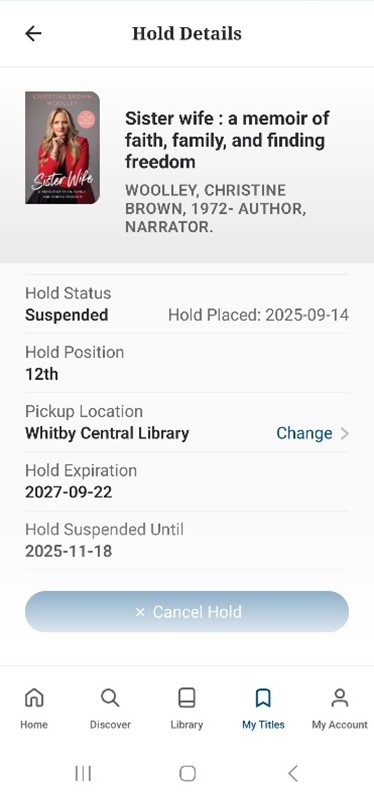
On the website, when you are looking at your list of holds on physical items you can tell which are suspended because they will say “Suspended” in the Status column. On the left side of the row for that hold you will see a yellow calendar icon. Hover over this icon to see the details of the hold suspension dates.
Click on submit. This will place a copy specific hold
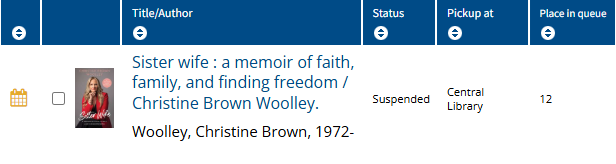
In the app, on the Holds screen “Physical” tab, you will see “Suspended” under any titles for which the hold is suspended. To get information on the suspension dates click on the title to be taken to the Hold Details screen.